> ## Documentation Index
> Fetch the complete documentation index at: https://docs-dev-docs-add-auth0-cli-management-api-examples.mintlify.site/llms.txt
> Use this file to discover all available pages before exploring further.

# Vault

> ActionsでVaultのフォームを使用する方法について説明します。

Vaultでは、シークレットや共通の設定（例：APIキー、アクセストークン、リフレッシュトークンなど）を安全に保存し、Vault接続として外部サービスや統合を使用した要求を認証できます。

<Callout icon="file-lines" color="#0EA5E9" iconType="regular">
  * 接続の中には、ユーザーに対して資格情報の提供を求めるものがあります（たとえば、Auth0でマシンツーマシン（M2M）アプリケーションを使う場合は、使用期限とリフレッシュトークンのあるアクセストークンを生成します）。接続は、両方のトークンを保管し、期限が切れる前に新しいアクセストークンを生成します。
  * 外部サービスによっては、API資格情報の生成にスコープの認可が必要です。スコープを変更した場合は、接続で問題が発生しないように、それらのサービスへの接続を更新してください。
  * 追加した接続は、すぐにフローで使用できます。既存の接続に対する更新は、自動的に反映されます。
</Callout>

## Vault接続を作成および変更する

アクションに資格情報が必要な場合、VaultページまたはフローエディターからVaultへの接続を作成・変更します。

### VaultページからVault接続を作成する

以下の手順に従って、VaultページからVault接続を追加します。

1. **［Auth0 Dashboard］>［Actions（アクション）］>［Forms（フォーム）］** の順に選択して、フォームエディターを開きます。

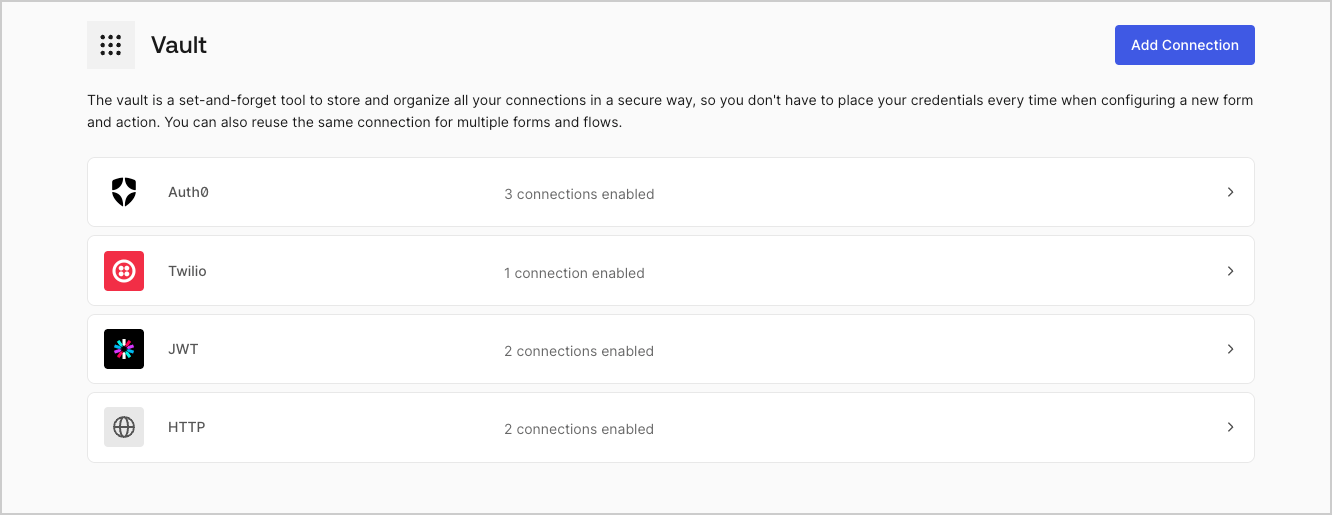
2. 左上隅の **{tenantName} >* \*\*\* ［Vault］*\* をクリックして、Vaultページを開きます。

   <Frame>
     <img src="https://mintcdn.com/docs-dev-docs-add-auth0-cli-management-api-examples/38jNE-lcMcK3Wl78/docs/images/ja-jp/cdy7uua7fh8z/1sPNPKO6nuEDCuiYGRWSur/d85dc616170eaf2d7d5f321750863ccf/vault-connections-example.png?fit=max&auto=format&n=38jNE-lcMcK3Wl78&q=85&s=dc153ff31bf750b3fb14e7816a4376ef" alt="Dashboard > Forms > Vault" data-og-width="1332" width="1332" data-og-height="515" height="515" data-path="docs/images/ja-jp/cdy7uua7fh8z/1sPNPKO6nuEDCuiYGRWSur/d85dc616170eaf2d7d5f321750863ccf/vault-connections-example.png" data-optimize="true" data-opv="3" srcset="https://mintcdn.com/docs-dev-docs-add-auth0-cli-management-api-examples/38jNE-lcMcK3Wl78/docs/images/ja-jp/cdy7uua7fh8z/1sPNPKO6nuEDCuiYGRWSur/d85dc616170eaf2d7d5f321750863ccf/vault-connections-example.png?w=280&fit=max&auto=format&n=38jNE-lcMcK3Wl78&q=85&s=43cb21baa95cef04c1f76871783f4965 280w, https://mintcdn.com/docs-dev-docs-add-auth0-cli-management-api-examples/38jNE-lcMcK3Wl78/docs/images/ja-jp/cdy7uua7fh8z/1sPNPKO6nuEDCuiYGRWSur/d85dc616170eaf2d7d5f321750863ccf/vault-connections-example.png?w=560&fit=max&auto=format&n=38jNE-lcMcK3Wl78&q=85&s=05482d80cbb8e1cd5df2dff78db03fa4 560w, https://mintcdn.com/docs-dev-docs-add-auth0-cli-management-api-examples/38jNE-lcMcK3Wl78/docs/images/ja-jp/cdy7uua7fh8z/1sPNPKO6nuEDCuiYGRWSur/d85dc616170eaf2d7d5f321750863ccf/vault-connections-example.png?w=840&fit=max&auto=format&n=38jNE-lcMcK3Wl78&q=85&s=ec00fe772c7f7ca96c1a120082b9dabd 840w, https://mintcdn.com/docs-dev-docs-add-auth0-cli-management-api-examples/38jNE-lcMcK3Wl78/docs/images/ja-jp/cdy7uua7fh8z/1sPNPKO6nuEDCuiYGRWSur/d85dc616170eaf2d7d5f321750863ccf/vault-connections-example.png?w=1100&fit=max&auto=format&n=38jNE-lcMcK3Wl78&q=85&s=4023ed9357c8ea21357ddd53c5a27e86 1100w, https://mintcdn.com/docs-dev-docs-add-auth0-cli-management-api-examples/38jNE-lcMcK3Wl78/docs/images/ja-jp/cdy7uua7fh8z/1sPNPKO6nuEDCuiYGRWSur/d85dc616170eaf2d7d5f321750863ccf/vault-connections-example.png?w=1650&fit=max&auto=format&n=38jNE-lcMcK3Wl78&q=85&s=4fd32e872ae3dbdd8f2478d0fbc40bcb 1650w, https://mintcdn.com/docs-dev-docs-add-auth0-cli-management-api-examples/38jNE-lcMcK3Wl78/docs/images/ja-jp/cdy7uua7fh8z/1sPNPKO6nuEDCuiYGRWSur/d85dc616170eaf2d7d5f321750863ccf/vault-connections-example.png?w=2500&fit=max&auto=format&n=38jNE-lcMcK3Wl78&q=85&s=b0d88c8041463d6016424290d7079613 2500w" />
   </Frame>

3. **［Add Vault Connection（Vault接続を追加）］** を選択します。

4. 必要なアクションを選択し、 **［Continue（続行）］** をクリックします。

5. Vaultの **［Connection name（接続名）］** を追加し、 **［Continue（続行）］** を選択します。

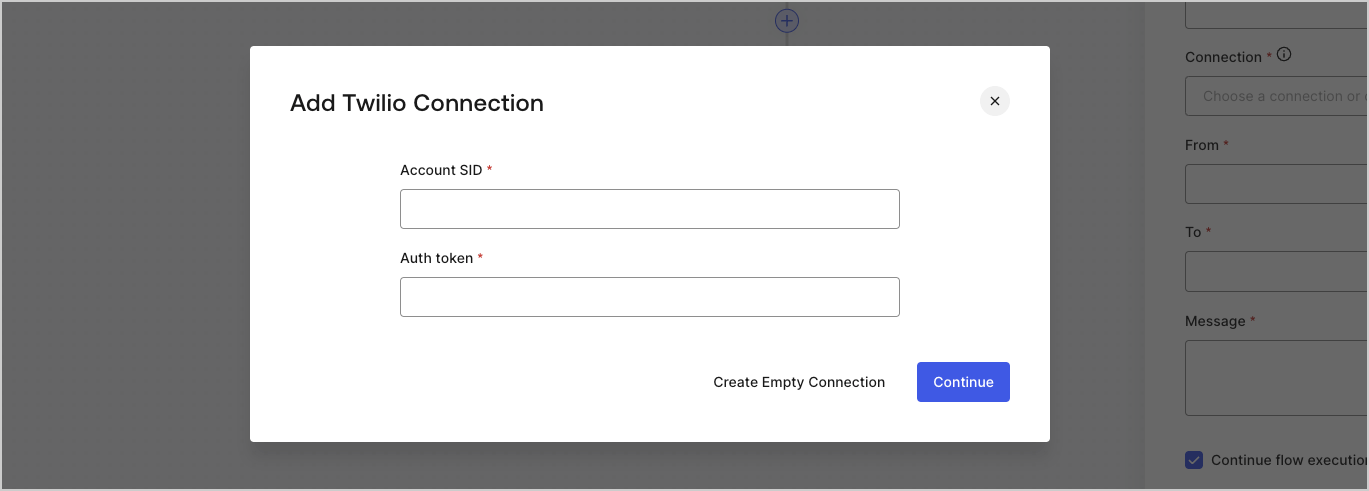
6. 資格情報を入力します。特定の資格情報がない場合は、 **［Create an empty connection（空の接続を作成）］** を選択し、後で資格情報を追加することもできます。空の接続には、資格情報が不足していることを示すオレンジ色のアイコンが表示されます。
7. **［Add Vault Connection（Vault接続を追加）］** を選択します。

### フローエディターからVault接続を作成する

フローアクションから、たとえばTwilioのようなVault接続を追加するには、以下の手順を実行します。

1. **［Auth0 Dashboard］>［Actions（アクション）］>［Forms（フォーム）］>［Flows（フロー）］** の順に選択して、フローエディターを開きます。

2. フローを選択し、 **［Send SMS with Twillo（TwilloでSMSを送信］** アクションを追加します。

3. アクションの **［Vault connection（Vault接続）］** 設定で、 **+** アイコンを選択します。

   <Frame>
     <img src="https://mintcdn.com/docs-dev-docs-add-auth0-cli-management-api-examples/YCrGJ9wJp7U54uyJ/docs/images/ja-jp/cdy7uua7fh8z/1AsaznhRKxm5LZxPlcbfUw/10e5a8af700aab909f5b03fcd266da7e/twilio-vault-connection.png?fit=max&auto=format&n=YCrGJ9wJp7U54uyJ&q=85&s=d9f58e282913981f173dbfac1e206b6e" alt="Dashboard > Forms > Vault " data-og-width="1104" width="1104" data-og-height="191" height="191" data-path="docs/images/ja-jp/cdy7uua7fh8z/1AsaznhRKxm5LZxPlcbfUw/10e5a8af700aab909f5b03fcd266da7e/twilio-vault-connection.png" data-optimize="true" data-opv="3" srcset="https://mintcdn.com/docs-dev-docs-add-auth0-cli-management-api-examples/YCrGJ9wJp7U54uyJ/docs/images/ja-jp/cdy7uua7fh8z/1AsaznhRKxm5LZxPlcbfUw/10e5a8af700aab909f5b03fcd266da7e/twilio-vault-connection.png?w=280&fit=max&auto=format&n=YCrGJ9wJp7U54uyJ&q=85&s=528186646da94e55a1c9cd2bd8f74c11 280w, https://mintcdn.com/docs-dev-docs-add-auth0-cli-management-api-examples/YCrGJ9wJp7U54uyJ/docs/images/ja-jp/cdy7uua7fh8z/1AsaznhRKxm5LZxPlcbfUw/10e5a8af700aab909f5b03fcd266da7e/twilio-vault-connection.png?w=560&fit=max&auto=format&n=YCrGJ9wJp7U54uyJ&q=85&s=855b53c6ff667fd9e850e3a223718a6e 560w, https://mintcdn.com/docs-dev-docs-add-auth0-cli-management-api-examples/YCrGJ9wJp7U54uyJ/docs/images/ja-jp/cdy7uua7fh8z/1AsaznhRKxm5LZxPlcbfUw/10e5a8af700aab909f5b03fcd266da7e/twilio-vault-connection.png?w=840&fit=max&auto=format&n=YCrGJ9wJp7U54uyJ&q=85&s=6fddf58d46ff091a845e05cecbf7410e 840w, https://mintcdn.com/docs-dev-docs-add-auth0-cli-management-api-examples/YCrGJ9wJp7U54uyJ/docs/images/ja-jp/cdy7uua7fh8z/1AsaznhRKxm5LZxPlcbfUw/10e5a8af700aab909f5b03fcd266da7e/twilio-vault-connection.png?w=1100&fit=max&auto=format&n=YCrGJ9wJp7U54uyJ&q=85&s=8fc749e4bb35cce4203f6671a4545bda 1100w, https://mintcdn.com/docs-dev-docs-add-auth0-cli-management-api-examples/YCrGJ9wJp7U54uyJ/docs/images/ja-jp/cdy7uua7fh8z/1AsaznhRKxm5LZxPlcbfUw/10e5a8af700aab909f5b03fcd266da7e/twilio-vault-connection.png?w=1650&fit=max&auto=format&n=YCrGJ9wJp7U54uyJ&q=85&s=67c4daabb37543a6a44cea9c27c92f36 1650w, https://mintcdn.com/docs-dev-docs-add-auth0-cli-management-api-examples/YCrGJ9wJp7U54uyJ/docs/images/ja-jp/cdy7uua7fh8z/1AsaznhRKxm5LZxPlcbfUw/10e5a8af700aab909f5b03fcd266da7e/twilio-vault-connection.png?w=2500&fit=max&auto=format&n=YCrGJ9wJp7U54uyJ&q=85&s=b58a26ed7ff4610c36c9de2cb2ca05fc 2500w" />
   </Frame>

4. Vaultの **［Connection name（接続名）］** を追加し、 **［Continue（続行）］** を選択します。

5. 資格情報を入力します。特定の資格情報がない場合は、 **［Create an empty connection（空の接続を作成）］** を選択し、後で資格情報を追加することもできます。空の接続には、資格情報が不足していることを示すオレンジ色のアイコンが表示されます。

   <Frame>
     <img src="https://mintcdn.com/docs-dev-docs-add-auth0-cli-management-api-examples/1UrU-5OV58U-4847/docs/images/ja-jp/cdy7uua7fh8z/yobXanutPRCO3FWek8cOk/bc29e39fb8593cff35e2738234bfe6fe/twilio-vault-settings.png?fit=max&auto=format&n=1UrU-5OV58U-4847&q=85&s=6ddcdf732f0bf0b2b8c6b6dc8e1dadec" alt="Dashboard > Forms > Vault > Twilio connection settings" data-og-width="1369" width="1369" data-og-height="491" height="491" data-path="docs/images/ja-jp/cdy7uua7fh8z/yobXanutPRCO3FWek8cOk/bc29e39fb8593cff35e2738234bfe6fe/twilio-vault-settings.png" data-optimize="true" data-opv="3" srcset="https://mintcdn.com/docs-dev-docs-add-auth0-cli-management-api-examples/1UrU-5OV58U-4847/docs/images/ja-jp/cdy7uua7fh8z/yobXanutPRCO3FWek8cOk/bc29e39fb8593cff35e2738234bfe6fe/twilio-vault-settings.png?w=280&fit=max&auto=format&n=1UrU-5OV58U-4847&q=85&s=d9451730b06d1dbeb6539395f742174b 280w, https://mintcdn.com/docs-dev-docs-add-auth0-cli-management-api-examples/1UrU-5OV58U-4847/docs/images/ja-jp/cdy7uua7fh8z/yobXanutPRCO3FWek8cOk/bc29e39fb8593cff35e2738234bfe6fe/twilio-vault-settings.png?w=560&fit=max&auto=format&n=1UrU-5OV58U-4847&q=85&s=83da84869a8cd9cb5a7f06579621026c 560w, https://mintcdn.com/docs-dev-docs-add-auth0-cli-management-api-examples/1UrU-5OV58U-4847/docs/images/ja-jp/cdy7uua7fh8z/yobXanutPRCO3FWek8cOk/bc29e39fb8593cff35e2738234bfe6fe/twilio-vault-settings.png?w=840&fit=max&auto=format&n=1UrU-5OV58U-4847&q=85&s=5c7706ee8865fd9c87841c448594d055 840w, https://mintcdn.com/docs-dev-docs-add-auth0-cli-management-api-examples/1UrU-5OV58U-4847/docs/images/ja-jp/cdy7uua7fh8z/yobXanutPRCO3FWek8cOk/bc29e39fb8593cff35e2738234bfe6fe/twilio-vault-settings.png?w=1100&fit=max&auto=format&n=1UrU-5OV58U-4847&q=85&s=9f60abab354ddb4e500b78c80525908b 1100w, https://mintcdn.com/docs-dev-docs-add-auth0-cli-management-api-examples/1UrU-5OV58U-4847/docs/images/ja-jp/cdy7uua7fh8z/yobXanutPRCO3FWek8cOk/bc29e39fb8593cff35e2738234bfe6fe/twilio-vault-settings.png?w=1650&fit=max&auto=format&n=1UrU-5OV58U-4847&q=85&s=5b3bd5119014aac41db3a1a662ed4bd3 1650w, https://mintcdn.com/docs-dev-docs-add-auth0-cli-management-api-examples/1UrU-5OV58U-4847/docs/images/ja-jp/cdy7uua7fh8z/yobXanutPRCO3FWek8cOk/bc29e39fb8593cff35e2738234bfe6fe/twilio-vault-settings.png?w=2500&fit=max&auto=format&n=1UrU-5OV58U-4847&q=85&s=e6405d3c6e84f2036462b2895095aeb9 2500w" />
   </Frame>

6. **［Add Vault Connection（Vault接続を追加）］** を選択します。