> ## Documentation Index
> Fetch the complete documentation index at: https://docs-dev-docs-add-auth0-cli-management-api-examples.mintlify.site/llms.txt
> Use this file to discover all available pages before exploring further.

> Learn how to configure a progressive profile form using Forms for Actions

# Use Cases: Configure a progressive profile form using Forms

<Card title="Before you start">
  1. Create a [Machine-to-Machine Application](/docs/get-started/auth0-overview/create-applications/machine-to-machine-apps) with the following scopes enabled:

  * `read:users`
  * `update:users`
  * `create:users`
  * `read:users_app_metadata`
  * `update:users_app_metadata`
  * `create:users_app_metadata`

  2. Add a [Vault connection](/docs/customize/forms/vault) using the M2M application credentials.
</Card>

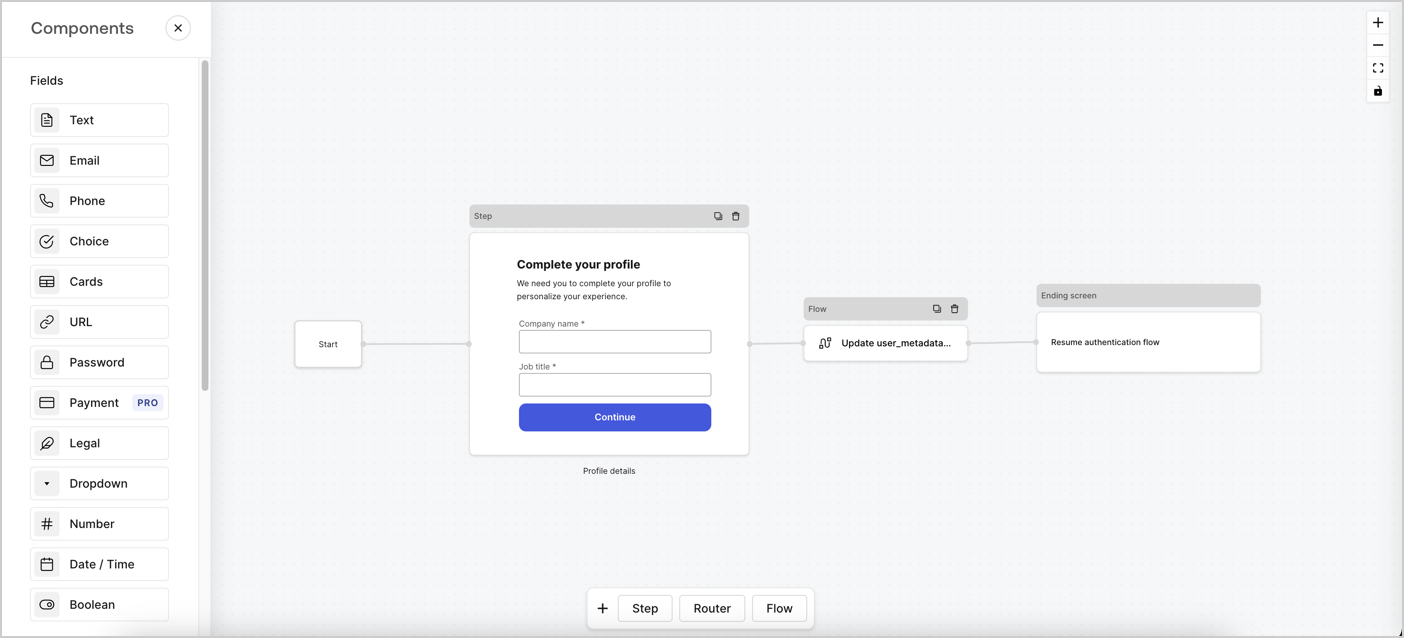
Forms for Actions allows you to create progressive profiling flows to decide when to prompt users to collect missing information, such as company name and job title, and store them as `user_metadata` attributes.
<Frame>
  <img src="https://mintcdn.com/docs-dev-docs-add-auth0-cli-management-api-examples/QsfdoL0ZWmASRA0n/docs/images/cdy7uua7fh8z/xUx9YmnHvnAqL19JvNtNP/60dae88f893d4ebe8e3523421e960596/Progressive-profle-overview.png?fit=max&auto=format&n=QsfdoL0ZWmASRA0n&q=85&s=6af2f0a24293eeca8427dad02b6a6377" alt="Dashboard > Actions > Forms > Form" data-og-width="1404" width="1404" data-og-height="638" height="638" data-path="docs/images/cdy7uua7fh8z/xUx9YmnHvnAqL19JvNtNP/60dae88f893d4ebe8e3523421e960596/Progressive-profle-overview.png" data-optimize="true" data-opv="3" srcset="https://mintcdn.com/docs-dev-docs-add-auth0-cli-management-api-examples/QsfdoL0ZWmASRA0n/docs/images/cdy7uua7fh8z/xUx9YmnHvnAqL19JvNtNP/60dae88f893d4ebe8e3523421e960596/Progressive-profle-overview.png?w=280&fit=max&auto=format&n=QsfdoL0ZWmASRA0n&q=85&s=4d605b66cd7d1e998421aa0cf0d3242b 280w, https://mintcdn.com/docs-dev-docs-add-auth0-cli-management-api-examples/QsfdoL0ZWmASRA0n/docs/images/cdy7uua7fh8z/xUx9YmnHvnAqL19JvNtNP/60dae88f893d4ebe8e3523421e960596/Progressive-profle-overview.png?w=560&fit=max&auto=format&n=QsfdoL0ZWmASRA0n&q=85&s=bf717b5834f80c01c403b6f8b6d2ad01 560w, https://mintcdn.com/docs-dev-docs-add-auth0-cli-management-api-examples/QsfdoL0ZWmASRA0n/docs/images/cdy7uua7fh8z/xUx9YmnHvnAqL19JvNtNP/60dae88f893d4ebe8e3523421e960596/Progressive-profle-overview.png?w=840&fit=max&auto=format&n=QsfdoL0ZWmASRA0n&q=85&s=7861cab9ed9253a3e43cd3a2e78c83a1 840w, https://mintcdn.com/docs-dev-docs-add-auth0-cli-management-api-examples/QsfdoL0ZWmASRA0n/docs/images/cdy7uua7fh8z/xUx9YmnHvnAqL19JvNtNP/60dae88f893d4ebe8e3523421e960596/Progressive-profle-overview.png?w=1100&fit=max&auto=format&n=QsfdoL0ZWmASRA0n&q=85&s=c21b8590aca609befd755ad1279ff5d3 1100w, https://mintcdn.com/docs-dev-docs-add-auth0-cli-management-api-examples/QsfdoL0ZWmASRA0n/docs/images/cdy7uua7fh8z/xUx9YmnHvnAqL19JvNtNP/60dae88f893d4ebe8e3523421e960596/Progressive-profle-overview.png?w=1650&fit=max&auto=format&n=QsfdoL0ZWmASRA0n&q=85&s=5183466a2d5227284c79871fa46c413b 1650w, https://mintcdn.com/docs-dev-docs-add-auth0-cli-management-api-examples/QsfdoL0ZWmASRA0n/docs/images/cdy7uua7fh8z/xUx9YmnHvnAqL19JvNtNP/60dae88f893d4ebe8e3523421e960596/Progressive-profle-overview.png?w=2500&fit=max&auto=format&n=QsfdoL0ZWmASRA0n&q=85&s=2d9f927ad878a2b596457973b38a7828 2500w" />
</Frame>

The sections below outline how you can create a progressive profile form using nodes and flows, along with steps for adding your form to a [Post Login Action](/docs/customize/actions/explore-triggers/signup-and-login-triggers/login-trigger).

## Create a form from scratch

Follow these steps to create a form to gather information:

1. Open the Form editor by selecting **Auth0 Dashboard > Actions > Forms.**
2. Select **Create Form** > **Start from scratch**.

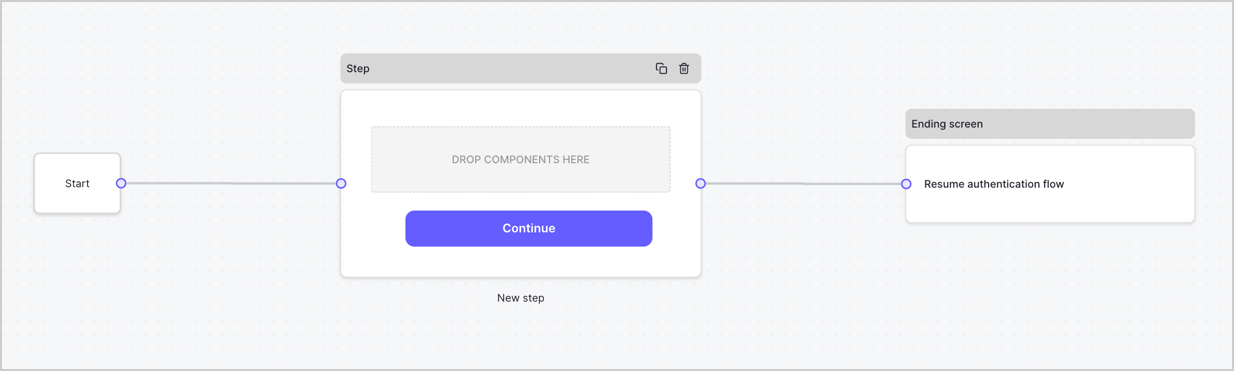
By default, a new form contains a Start node, a Step node, and an Ending screen node.
<Frame>
  <img src="https://mintcdn.com/docs-dev-docs-add-auth0-cli-management-api-examples/1z8Uqwf-Ck-y347i/docs/images/cdy7uua7fh8z/2TZ9jSjgEcARFpULI6hz4R/a4319a1bd482f2ee5cc23100fdb2f42c/New-form-Forms-for-action-use-case.png?fit=max&auto=format&n=1z8Uqwf-Ck-y347i&q=85&s=cefc60496b5c08c8d0956cc804379253" alt="Dashboard > Forms > Use Cases > Form" data-og-width="1234" width="1234" data-og-height="371" height="371" data-path="docs/images/cdy7uua7fh8z/2TZ9jSjgEcARFpULI6hz4R/a4319a1bd482f2ee5cc23100fdb2f42c/New-form-Forms-for-action-use-case.png" data-optimize="true" data-opv="3" srcset="https://mintcdn.com/docs-dev-docs-add-auth0-cli-management-api-examples/1z8Uqwf-Ck-y347i/docs/images/cdy7uua7fh8z/2TZ9jSjgEcARFpULI6hz4R/a4319a1bd482f2ee5cc23100fdb2f42c/New-form-Forms-for-action-use-case.png?w=280&fit=max&auto=format&n=1z8Uqwf-Ck-y347i&q=85&s=4509ef317e1a7968dcbcddfc91d08a7c 280w, https://mintcdn.com/docs-dev-docs-add-auth0-cli-management-api-examples/1z8Uqwf-Ck-y347i/docs/images/cdy7uua7fh8z/2TZ9jSjgEcARFpULI6hz4R/a4319a1bd482f2ee5cc23100fdb2f42c/New-form-Forms-for-action-use-case.png?w=560&fit=max&auto=format&n=1z8Uqwf-Ck-y347i&q=85&s=b2e9e0599a8a296437609e8158159355 560w, https://mintcdn.com/docs-dev-docs-add-auth0-cli-management-api-examples/1z8Uqwf-Ck-y347i/docs/images/cdy7uua7fh8z/2TZ9jSjgEcARFpULI6hz4R/a4319a1bd482f2ee5cc23100fdb2f42c/New-form-Forms-for-action-use-case.png?w=840&fit=max&auto=format&n=1z8Uqwf-Ck-y347i&q=85&s=7e5faf7a85cc0e410e14de03d0b9ad45 840w, https://mintcdn.com/docs-dev-docs-add-auth0-cli-management-api-examples/1z8Uqwf-Ck-y347i/docs/images/cdy7uua7fh8z/2TZ9jSjgEcARFpULI6hz4R/a4319a1bd482f2ee5cc23100fdb2f42c/New-form-Forms-for-action-use-case.png?w=1100&fit=max&auto=format&n=1z8Uqwf-Ck-y347i&q=85&s=da2bf7a4d6972c2608f05863d7b201b9 1100w, https://mintcdn.com/docs-dev-docs-add-auth0-cli-management-api-examples/1z8Uqwf-Ck-y347i/docs/images/cdy7uua7fh8z/2TZ9jSjgEcARFpULI6hz4R/a4319a1bd482f2ee5cc23100fdb2f42c/New-form-Forms-for-action-use-case.png?w=1650&fit=max&auto=format&n=1z8Uqwf-Ck-y347i&q=85&s=c4801247ff95341f5efa9b654c394e7d 1650w, https://mintcdn.com/docs-dev-docs-add-auth0-cli-management-api-examples/1z8Uqwf-Ck-y347i/docs/images/cdy7uua7fh8z/2TZ9jSjgEcARFpULI6hz4R/a4319a1bd482f2ee5cc23100fdb2f42c/New-form-Forms-for-action-use-case.png?w=2500&fit=max&auto=format&n=1z8Uqwf-Ck-y347i&q=85&s=f61a0b9ae40e1fc0be7a56c0f00ae3aa 2500w" />
</Frame>

### Configure the Step node

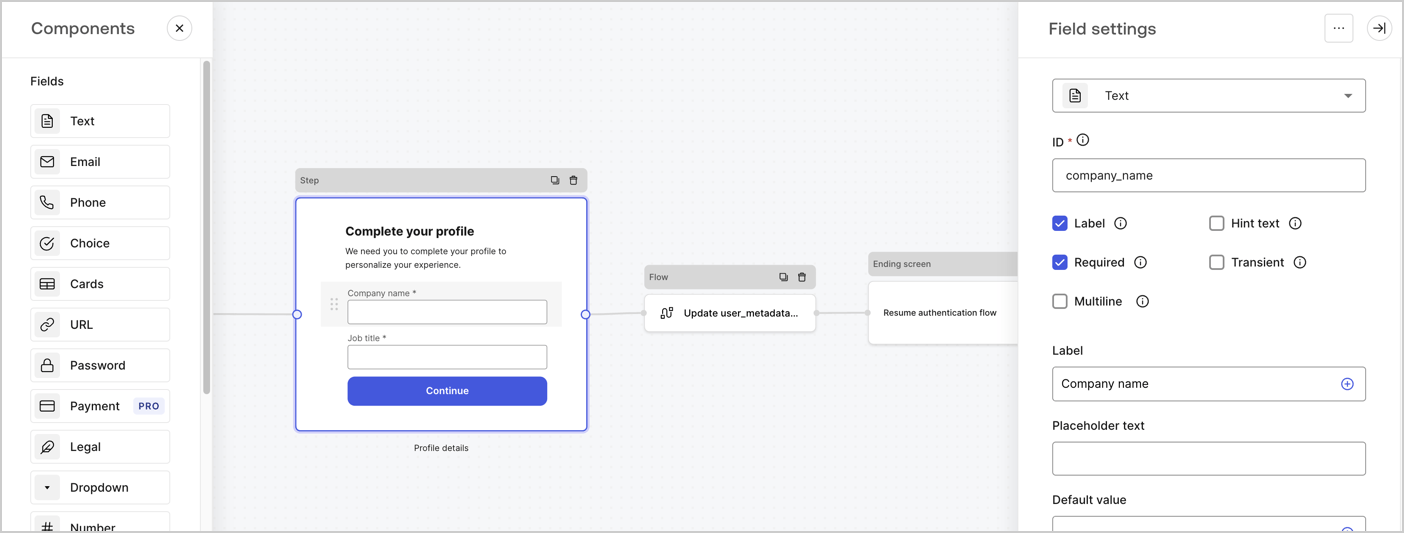
The Step node is the graphical interface visible to users. Add [Fields](/docs/customize/forms/nodes-and-components) to the Step node to collect the user's company name and job title values by following these steps:

1. Drag a **Rich text** field from the **Components menu** into the **Step** node.

   * **Rich text**: Enter a custom message.

     * **Example**: `Complete your profile! We need you to complete your profile to personalize your experience.`
   * Select **Save**.
2. Drag a **Text** field into the **Step** node.

   * **ID**: Enter `company_name`.
   * **Label**: Enable the checkbox.
   * **Label**: Enter `Company name`.
   * **Required**: Enable the checkbox.
   * Select **Save**.
3. Drag a **Text** field into the **Step** node.

   1. **ID**: Enter `job_title`.
   2. **Label**: Enter `Job title`.
   3. **Label**: Enable the checkbox.
   4. **Required**: Enable the checkbox.
   5. Select **Save**.
4. Select **Publish** to save.
<Frame>
  <img src="https://mintcdn.com/docs-dev-docs-add-auth0-cli-management-api-examples/8Xt9BaI5_qlm0wDg/docs/images/cdy7uua7fh8z/6H1lRzwKyYioQyQJ9MtIoM/aa248e92fc028a68a5b92ff361a11644/progressive-profile-step.png?fit=max&auto=format&n=8Xt9BaI5_qlm0wDg&q=85&s=797a6ebe1f140d48e7b0c93470b2a0ee" alt="Dashboard > Actions > Forms > Form > Step node" data-og-width="1404" width="1404" data-og-height="533" height="533" data-path="docs/images/cdy7uua7fh8z/6H1lRzwKyYioQyQJ9MtIoM/aa248e92fc028a68a5b92ff361a11644/progressive-profile-step.png" data-optimize="true" data-opv="3" srcset="https://mintcdn.com/docs-dev-docs-add-auth0-cli-management-api-examples/8Xt9BaI5_qlm0wDg/docs/images/cdy7uua7fh8z/6H1lRzwKyYioQyQJ9MtIoM/aa248e92fc028a68a5b92ff361a11644/progressive-profile-step.png?w=280&fit=max&auto=format&n=8Xt9BaI5_qlm0wDg&q=85&s=e20f9ffdc3b89891e2a0c64b5d1a8cad 280w, https://mintcdn.com/docs-dev-docs-add-auth0-cli-management-api-examples/8Xt9BaI5_qlm0wDg/docs/images/cdy7uua7fh8z/6H1lRzwKyYioQyQJ9MtIoM/aa248e92fc028a68a5b92ff361a11644/progressive-profile-step.png?w=560&fit=max&auto=format&n=8Xt9BaI5_qlm0wDg&q=85&s=54068358b776bae2a4a6d5319d142b29 560w, https://mintcdn.com/docs-dev-docs-add-auth0-cli-management-api-examples/8Xt9BaI5_qlm0wDg/docs/images/cdy7uua7fh8z/6H1lRzwKyYioQyQJ9MtIoM/aa248e92fc028a68a5b92ff361a11644/progressive-profile-step.png?w=840&fit=max&auto=format&n=8Xt9BaI5_qlm0wDg&q=85&s=e520d2d2eeaa9e767528d4048daf4668 840w, https://mintcdn.com/docs-dev-docs-add-auth0-cli-management-api-examples/8Xt9BaI5_qlm0wDg/docs/images/cdy7uua7fh8z/6H1lRzwKyYioQyQJ9MtIoM/aa248e92fc028a68a5b92ff361a11644/progressive-profile-step.png?w=1100&fit=max&auto=format&n=8Xt9BaI5_qlm0wDg&q=85&s=de2c152e770d30f6ad79b009e7b68d22 1100w, https://mintcdn.com/docs-dev-docs-add-auth0-cli-management-api-examples/8Xt9BaI5_qlm0wDg/docs/images/cdy7uua7fh8z/6H1lRzwKyYioQyQJ9MtIoM/aa248e92fc028a68a5b92ff361a11644/progressive-profile-step.png?w=1650&fit=max&auto=format&n=8Xt9BaI5_qlm0wDg&q=85&s=d39f89cb234d55282b2ae497db99e452 1650w, https://mintcdn.com/docs-dev-docs-add-auth0-cli-management-api-examples/8Xt9BaI5_qlm0wDg/docs/images/cdy7uua7fh8z/6H1lRzwKyYioQyQJ9MtIoM/aa248e92fc028a68a5b92ff361a11644/progressive-profile-step.png?w=2500&fit=max&auto=format&n=8Xt9BaI5_qlm0wDg&q=85&s=3d96ab3850d8f3cb8721d2890504c922 2500w" />
</Frame>

### Configure the flow node

Add a **Flow** node after the **Step** node to update the `user_metadata` and resume the authentication flow by following these steps:

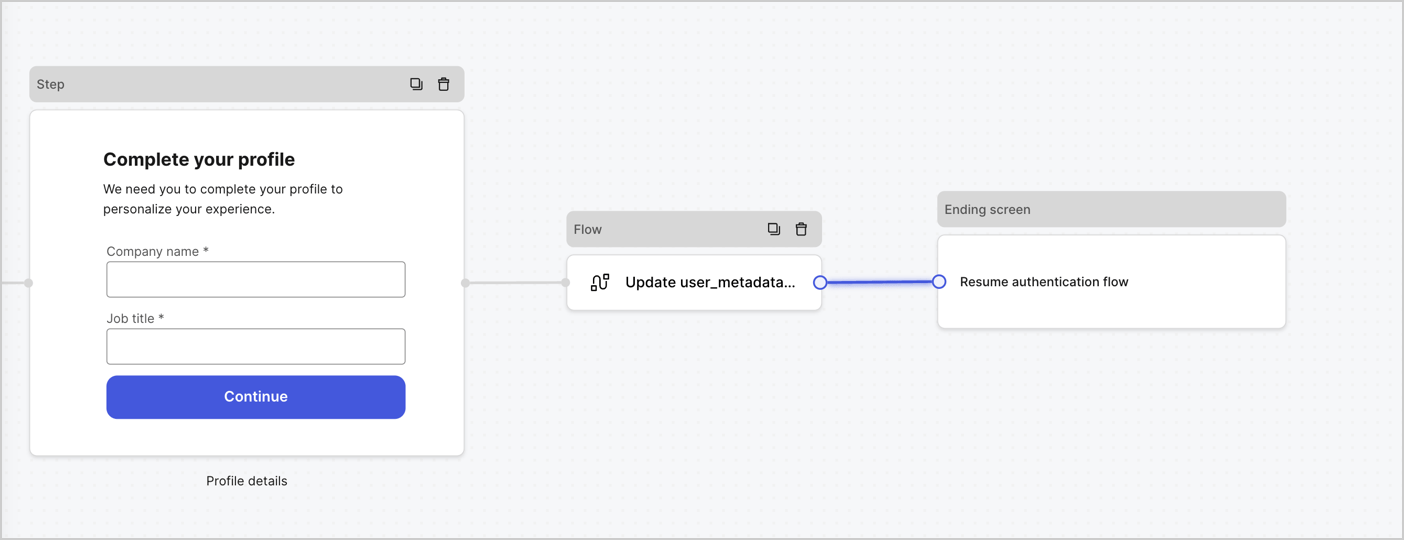
1. Select **Flow** from the bottom of the Form editor.
2. Remove the existing link between the **Step** and **Ending Screen** nodes.
3. Select the new **Flow** > **Click to add a flow** > **Create a new flow.**

   * Enter `Update user_metadata` in the **Name** field.
   * Select **Create**.
   * Select **Save**.
4. Link the **Flow** node to the **Step** and **Ending Screen** nodes as pictured below.
5. Select **Publish** to save.
<Frame>
  <img src="https://mintcdn.com/docs-dev-docs-add-auth0-cli-management-api-examples/iIP1qHqXW4D_Pm7x/docs/images/cdy7uua7fh8z/5C91DaWn4LGtJT9BF87ssu/095171d0c452a287c44bfde12fd6d13f/link-nodes.png?fit=max&auto=format&n=iIP1qHqXW4D_Pm7x&q=85&s=e3672dd9603b07cb003a1781d42bb644" alt="Dashboard > Actions > Forms > Form" data-og-width="1404" width="1404" data-og-height="540" height="540" data-path="docs/images/cdy7uua7fh8z/5C91DaWn4LGtJT9BF87ssu/095171d0c452a287c44bfde12fd6d13f/link-nodes.png" data-optimize="true" data-opv="3" srcset="https://mintcdn.com/docs-dev-docs-add-auth0-cli-management-api-examples/iIP1qHqXW4D_Pm7x/docs/images/cdy7uua7fh8z/5C91DaWn4LGtJT9BF87ssu/095171d0c452a287c44bfde12fd6d13f/link-nodes.png?w=280&fit=max&auto=format&n=iIP1qHqXW4D_Pm7x&q=85&s=ab740c8106d506ce4e148bb21c4071b9 280w, https://mintcdn.com/docs-dev-docs-add-auth0-cli-management-api-examples/iIP1qHqXW4D_Pm7x/docs/images/cdy7uua7fh8z/5C91DaWn4LGtJT9BF87ssu/095171d0c452a287c44bfde12fd6d13f/link-nodes.png?w=560&fit=max&auto=format&n=iIP1qHqXW4D_Pm7x&q=85&s=35789db5e3dbffa86076db13e7be5e40 560w, https://mintcdn.com/docs-dev-docs-add-auth0-cli-management-api-examples/iIP1qHqXW4D_Pm7x/docs/images/cdy7uua7fh8z/5C91DaWn4LGtJT9BF87ssu/095171d0c452a287c44bfde12fd6d13f/link-nodes.png?w=840&fit=max&auto=format&n=iIP1qHqXW4D_Pm7x&q=85&s=149ecd51e40deede03f7af7d2d9cd0ca 840w, https://mintcdn.com/docs-dev-docs-add-auth0-cli-management-api-examples/iIP1qHqXW4D_Pm7x/docs/images/cdy7uua7fh8z/5C91DaWn4LGtJT9BF87ssu/095171d0c452a287c44bfde12fd6d13f/link-nodes.png?w=1100&fit=max&auto=format&n=iIP1qHqXW4D_Pm7x&q=85&s=621e53235418a99346d0febc19f49cdd 1100w, https://mintcdn.com/docs-dev-docs-add-auth0-cli-management-api-examples/iIP1qHqXW4D_Pm7x/docs/images/cdy7uua7fh8z/5C91DaWn4LGtJT9BF87ssu/095171d0c452a287c44bfde12fd6d13f/link-nodes.png?w=1650&fit=max&auto=format&n=iIP1qHqXW4D_Pm7x&q=85&s=cf1d29c34db1ba4b241cb5d4750368c6 1650w, https://mintcdn.com/docs-dev-docs-add-auth0-cli-management-api-examples/iIP1qHqXW4D_Pm7x/docs/images/cdy7uua7fh8z/5C91DaWn4LGtJT9BF87ssu/095171d0c452a287c44bfde12fd6d13f/link-nodes.png?w=2500&fit=max&auto=format&n=iIP1qHqXW4D_Pm7x&q=85&s=773ae8277b385551f980c26e3033f777 2500w" />
</Frame>

Add an Auth0 Update user action to the flow by following these steps:

1. Select the **Update user\_metadata** flow, then select the **Edit Flow** to open the Flow editor in a new tab.
2. Below the **Start** action, select the **+** icon to add an **Update user** action. Complete the fields below, then select **Save** to continue.

   * **Connection**: Select from the dropdown the Vault connection to your M2M application.

   * **User ID**: Enter `{{context.user.user_id}}`.

   * **Body**: Copy and paste the following code to update the user\_metadata with `job_title` and `company_name` properties.

     ```json lines theme={null}
     {
        "user_metadata": {
           "job_title": "{{fields.job_title}}",
           "company_name": "{{fields.company_name}}"
        }
     }
     ```

   * Select **Save**.
3. Select **Publish** to save.

<Frame>
  <img src="https://mintcdn.com/docs-dev-docs-add-auth0-cli-management-api-examples/cLUMAJOI90NNSgfh/docs/images/cdy7uua7fh8z/65Jx4W5oIZJyyvA8z4HqIx/0661b1a8ca6361c54fc4fef07ba59f0b/update-user.png?fit=max&auto=format&n=cLUMAJOI90NNSgfh&q=85&s=fa9d44688550950befa154890909143b" alt="Dashboard > Actions > Forms > Flows" data-og-width="1404" width="1404" data-og-height="244" height="244" data-path="docs/images/cdy7uua7fh8z/65Jx4W5oIZJyyvA8z4HqIx/0661b1a8ca6361c54fc4fef07ba59f0b/update-user.png" data-optimize="true" data-opv="3" srcset="https://mintcdn.com/docs-dev-docs-add-auth0-cli-management-api-examples/cLUMAJOI90NNSgfh/docs/images/cdy7uua7fh8z/65Jx4W5oIZJyyvA8z4HqIx/0661b1a8ca6361c54fc4fef07ba59f0b/update-user.png?w=280&fit=max&auto=format&n=cLUMAJOI90NNSgfh&q=85&s=785cd82e5a6fd0b7aa1b151c1ce8fc98 280w, https://mintcdn.com/docs-dev-docs-add-auth0-cli-management-api-examples/cLUMAJOI90NNSgfh/docs/images/cdy7uua7fh8z/65Jx4W5oIZJyyvA8z4HqIx/0661b1a8ca6361c54fc4fef07ba59f0b/update-user.png?w=560&fit=max&auto=format&n=cLUMAJOI90NNSgfh&q=85&s=21e24b2d61c03b9c733e8cc9924844a9 560w, https://mintcdn.com/docs-dev-docs-add-auth0-cli-management-api-examples/cLUMAJOI90NNSgfh/docs/images/cdy7uua7fh8z/65Jx4W5oIZJyyvA8z4HqIx/0661b1a8ca6361c54fc4fef07ba59f0b/update-user.png?w=840&fit=max&auto=format&n=cLUMAJOI90NNSgfh&q=85&s=252042b0dee579d0295f67fcc0a2a398 840w, https://mintcdn.com/docs-dev-docs-add-auth0-cli-management-api-examples/cLUMAJOI90NNSgfh/docs/images/cdy7uua7fh8z/65Jx4W5oIZJyyvA8z4HqIx/0661b1a8ca6361c54fc4fef07ba59f0b/update-user.png?w=1100&fit=max&auto=format&n=cLUMAJOI90NNSgfh&q=85&s=f8b4a6daa37f0364bdfb9a83044a09d4 1100w, https://mintcdn.com/docs-dev-docs-add-auth0-cli-management-api-examples/cLUMAJOI90NNSgfh/docs/images/cdy7uua7fh8z/65Jx4W5oIZJyyvA8z4HqIx/0661b1a8ca6361c54fc4fef07ba59f0b/update-user.png?w=1650&fit=max&auto=format&n=cLUMAJOI90NNSgfh&q=85&s=7c43ec7169a0e7f9584e38cfc97c34ea 1650w, https://mintcdn.com/docs-dev-docs-add-auth0-cli-management-api-examples/cLUMAJOI90NNSgfh/docs/images/cdy7uua7fh8z/65Jx4W5oIZJyyvA8z4HqIx/0661b1a8ca6361c54fc4fef07ba59f0b/update-user.png?w=2500&fit=max&auto=format&n=cLUMAJOI90NNSgfh&q=85&s=73ce1c363630ec3bb172dfc4138fa201 2500w" />
</Frame>

### Retrieve the form render code

Retrieve the form render code to visually render the form with a custom Post Login Action by following these steps:

* From the Form editor, select **`<> Render`**.
* Select **Copy**.
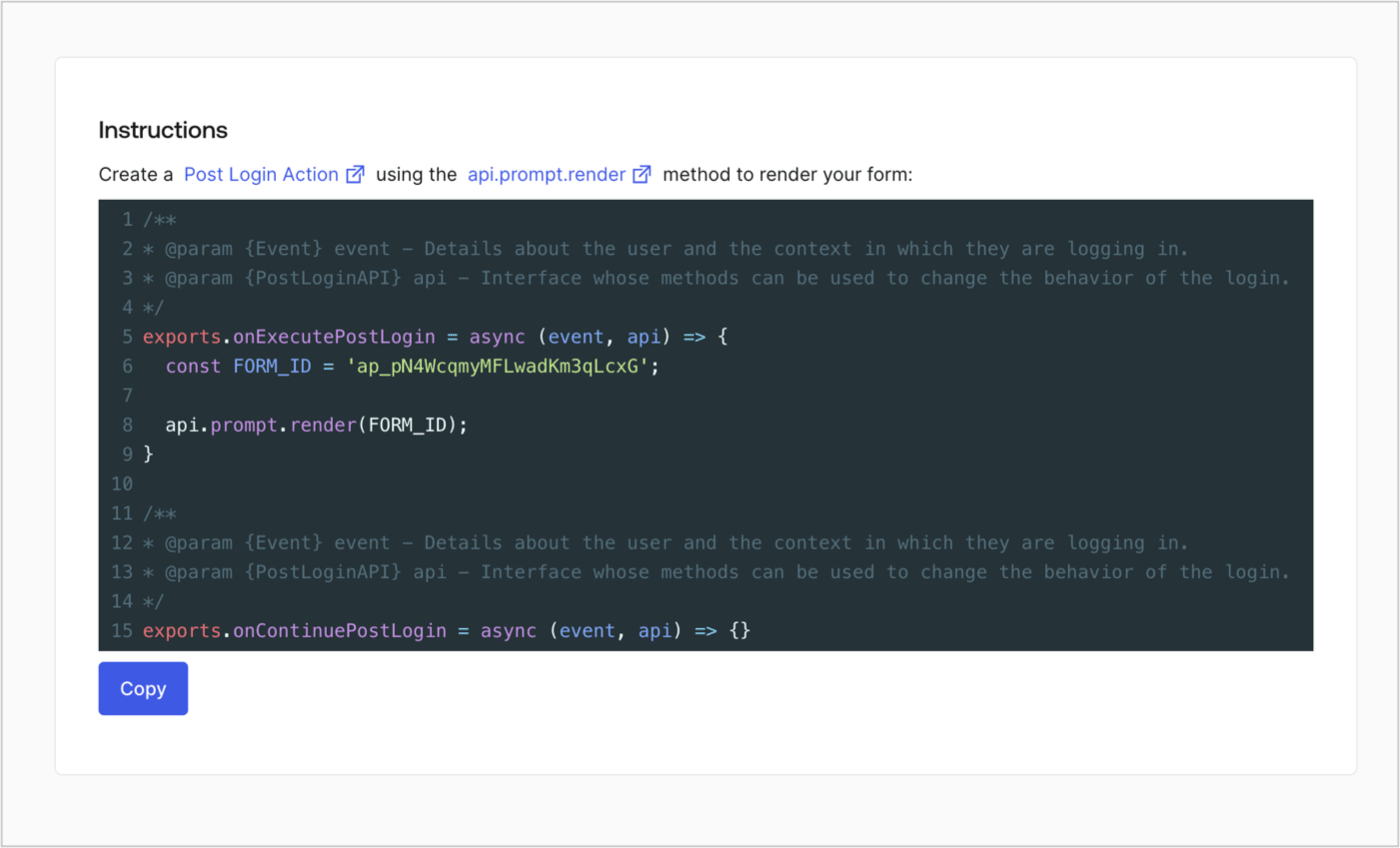
<Frame>
  <img src="https://mintcdn.com/docs-dev-docs-add-auth0-cli-management-api-examples/i9mIpcfLxROfkyru/docs/images/cdy7uua7fh8z/2EIUzc539sq9lwoTKbjoJv/496a864c0fc44a782c9cadca119dbfb0/embed.png?fit=max&auto=format&n=i9mIpcfLxROfkyru&q=85&s=ad636ab9f6af86920ecab796e89ee539" alt="Dashboard > Actions > Forms > Form > Embed" data-og-width="1400" width="1400" data-og-height="848" height="848" data-path="docs/images/cdy7uua7fh8z/2EIUzc539sq9lwoTKbjoJv/496a864c0fc44a782c9cadca119dbfb0/embed.png" data-optimize="true" data-opv="3" srcset="https://mintcdn.com/docs-dev-docs-add-auth0-cli-management-api-examples/i9mIpcfLxROfkyru/docs/images/cdy7uua7fh8z/2EIUzc539sq9lwoTKbjoJv/496a864c0fc44a782c9cadca119dbfb0/embed.png?w=280&fit=max&auto=format&n=i9mIpcfLxROfkyru&q=85&s=48e8284731d0168e03ca232167bd50d8 280w, https://mintcdn.com/docs-dev-docs-add-auth0-cli-management-api-examples/i9mIpcfLxROfkyru/docs/images/cdy7uua7fh8z/2EIUzc539sq9lwoTKbjoJv/496a864c0fc44a782c9cadca119dbfb0/embed.png?w=560&fit=max&auto=format&n=i9mIpcfLxROfkyru&q=85&s=7b8fb9ee06642874463d6088572a7af9 560w, https://mintcdn.com/docs-dev-docs-add-auth0-cli-management-api-examples/i9mIpcfLxROfkyru/docs/images/cdy7uua7fh8z/2EIUzc539sq9lwoTKbjoJv/496a864c0fc44a782c9cadca119dbfb0/embed.png?w=840&fit=max&auto=format&n=i9mIpcfLxROfkyru&q=85&s=0b6f76811de1767454110131757f07b5 840w, https://mintcdn.com/docs-dev-docs-add-auth0-cli-management-api-examples/i9mIpcfLxROfkyru/docs/images/cdy7uua7fh8z/2EIUzc539sq9lwoTKbjoJv/496a864c0fc44a782c9cadca119dbfb0/embed.png?w=1100&fit=max&auto=format&n=i9mIpcfLxROfkyru&q=85&s=f3b90c05dd87614ddcdfc1cd699b9b9e 1100w, https://mintcdn.com/docs-dev-docs-add-auth0-cli-management-api-examples/i9mIpcfLxROfkyru/docs/images/cdy7uua7fh8z/2EIUzc539sq9lwoTKbjoJv/496a864c0fc44a782c9cadca119dbfb0/embed.png?w=1650&fit=max&auto=format&n=i9mIpcfLxROfkyru&q=85&s=ccddacdc4030cc1d1cf4844fb7caf28f 1650w, https://mintcdn.com/docs-dev-docs-add-auth0-cli-management-api-examples/i9mIpcfLxROfkyru/docs/images/cdy7uua7fh8z/2EIUzc539sq9lwoTKbjoJv/496a864c0fc44a782c9cadca119dbfb0/embed.png?w=2500&fit=max&auto=format&n=i9mIpcfLxROfkyru&q=85&s=d7920bbc76cb24ea458cc3dafc2b6f8e 2500w" />
</Frame>

## Create a Post Login Action

Create a post-login Action to render your form by following these steps:

1. Navigate to **Auth0 Dashboard > Actions > Flows > Login.**
2. Select the **+** icon and select **Build from scratch**:

   * **Name**: Enter `Render Progressive Profile Form`.
   * **Trigger**: Select `Login / Post Login`.
   * **Runtime**: Select the recommended version.
3. Select **Create**.

To configure the post-login Action:

1. Delete the existing code from the Code editor.
2. Paste the form embed code into the Code editor.
3. Edit the code to define the conditional logic that will render the form.

   ```javascript lines theme={null}
   /**
   * @param {Event} event - Details about the user and the context in which they are logging in.
   * @param {PostLoginAPI} api - Interface whose methods can be used to change the behavior of the login.
   */
   exports.onExecutePostLogin = async (event, api) => {
     const FORM_ID = 'REPLACE_WITH_YOUR_FORM_ID';

     if (
       event.stats.logins_count > 2 &&
       !event.user.user_metadata.company_name &&
       !event.user.user_metadata.job_title
     ) {
       api.prompt.render(FORM_ID);
     }
   }

   exports.onContinuePostLogin = async (event, api) => { }
   ```

   <Callout icon="file-lines" color="#0EA5E9" iconType="regular">
     The example code above will render the form when a user has a login count > 2 and is missing the user metadata company\_name and job\_title properties.
   </Callout>
4. Select **Deploy.**
5. Drag and Drop the **Render Progressive Profile Form** Action to the **Login** flow.
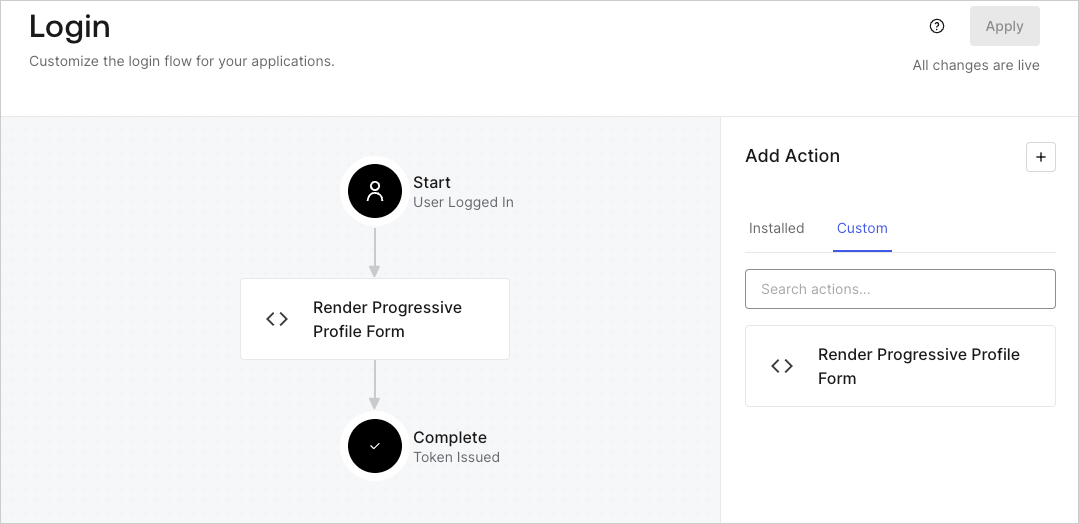
   <Frame>
     <img src="https://mintcdn.com/docs-dev-docs-add-auth0-cli-management-api-examples/ibKYLpITcifUyhuT/docs/images/cdy7uua7fh8z/1QjjZdpTqTxx012UDN4xk9/99fba5ef4068a5688f1762eea7f42976/renderprogessiveprofile.png?fit=max&auto=format&n=ibKYLpITcifUyhuT&q=85&s=c65fceb3813df3b2ad999e4fd6d89506" alt="Dashboard > Forms > Use Cases Progressive Profile Login Action" data-og-width="1079" width="1079" data-og-height="524" height="524" data-path="docs/images/cdy7uua7fh8z/1QjjZdpTqTxx012UDN4xk9/99fba5ef4068a5688f1762eea7f42976/renderprogessiveprofile.png" data-optimize="true" data-opv="3" srcset="https://mintcdn.com/docs-dev-docs-add-auth0-cli-management-api-examples/ibKYLpITcifUyhuT/docs/images/cdy7uua7fh8z/1QjjZdpTqTxx012UDN4xk9/99fba5ef4068a5688f1762eea7f42976/renderprogessiveprofile.png?w=280&fit=max&auto=format&n=ibKYLpITcifUyhuT&q=85&s=d821a67f400743551e39d4dcd22409bb 280w, https://mintcdn.com/docs-dev-docs-add-auth0-cli-management-api-examples/ibKYLpITcifUyhuT/docs/images/cdy7uua7fh8z/1QjjZdpTqTxx012UDN4xk9/99fba5ef4068a5688f1762eea7f42976/renderprogessiveprofile.png?w=560&fit=max&auto=format&n=ibKYLpITcifUyhuT&q=85&s=5611c84f99887939de0a9c9a812aee92 560w, https://mintcdn.com/docs-dev-docs-add-auth0-cli-management-api-examples/ibKYLpITcifUyhuT/docs/images/cdy7uua7fh8z/1QjjZdpTqTxx012UDN4xk9/99fba5ef4068a5688f1762eea7f42976/renderprogessiveprofile.png?w=840&fit=max&auto=format&n=ibKYLpITcifUyhuT&q=85&s=cec9c6ed3f5001de9a0562cac73a2d1a 840w, https://mintcdn.com/docs-dev-docs-add-auth0-cli-management-api-examples/ibKYLpITcifUyhuT/docs/images/cdy7uua7fh8z/1QjjZdpTqTxx012UDN4xk9/99fba5ef4068a5688f1762eea7f42976/renderprogessiveprofile.png?w=1100&fit=max&auto=format&n=ibKYLpITcifUyhuT&q=85&s=6d88cc0ae1102574a5534ad0b37e3e05 1100w, https://mintcdn.com/docs-dev-docs-add-auth0-cli-management-api-examples/ibKYLpITcifUyhuT/docs/images/cdy7uua7fh8z/1QjjZdpTqTxx012UDN4xk9/99fba5ef4068a5688f1762eea7f42976/renderprogessiveprofile.png?w=1650&fit=max&auto=format&n=ibKYLpITcifUyhuT&q=85&s=39b48c14a04ec1aae82e828776b0c419 1650w, https://mintcdn.com/docs-dev-docs-add-auth0-cli-management-api-examples/ibKYLpITcifUyhuT/docs/images/cdy7uua7fh8z/1QjjZdpTqTxx012UDN4xk9/99fba5ef4068a5688f1762eea7f42976/renderprogessiveprofile.png?w=2500&fit=max&auto=format&n=ibKYLpITcifUyhuT&q=85&s=050fb8da7fdcb25a9b62fdd333e01e5d 2500w" />
   </Frame>
6. Select **Apply**.

### Test implementation

Test the implementation by following these steps:

1. Log in with an existing user whose login count is greater than 2 and their `user_metadata` attributes `company_name` and `job_title` have no values.
2. The post-login action in the Login flow will render the form and prompt for the information.
3. Select **Auth0 Dashboard > User Management > Users,** locate the user and verify that the `user_metadata` attributes `company_name` and `job_title` contain information.
